


Fast Fixes for Comcast Business Login Issues. In the fast-paced world of business, downtime is more than just an inconvenience—it’s a direct hit to your bottom line.
As we navigate 2026, the Comcast Business ecosystem has become more secure and integrated than ever, but with that sophistication comes a new set of login challenges.
Whether you are facing a “Something Went Wrong” loop or struggling with Multi-Factor Authentication (MFA) sync issues, this guide is designed to get you back online quickly.
Understanding the 2026 Comcast Business Login Landscape
By 2026, Comcast Business has shifted toward a “Zero Trust” security model. This means that login protocols are stricter, session tokens expire faster, and the system is more sensitive to “unusual” network behavior like unrecognized VPNs or outdated browser headers.
Most login issues today fall into three categories:
- Credential Failures: Simple password or username mismatches.
- Authentication Handshake Errors: Conflicts between your browser/app and Comcast’s security servers.
- Security Obstacles: Issues with MFA, two-step verification, or account locks.
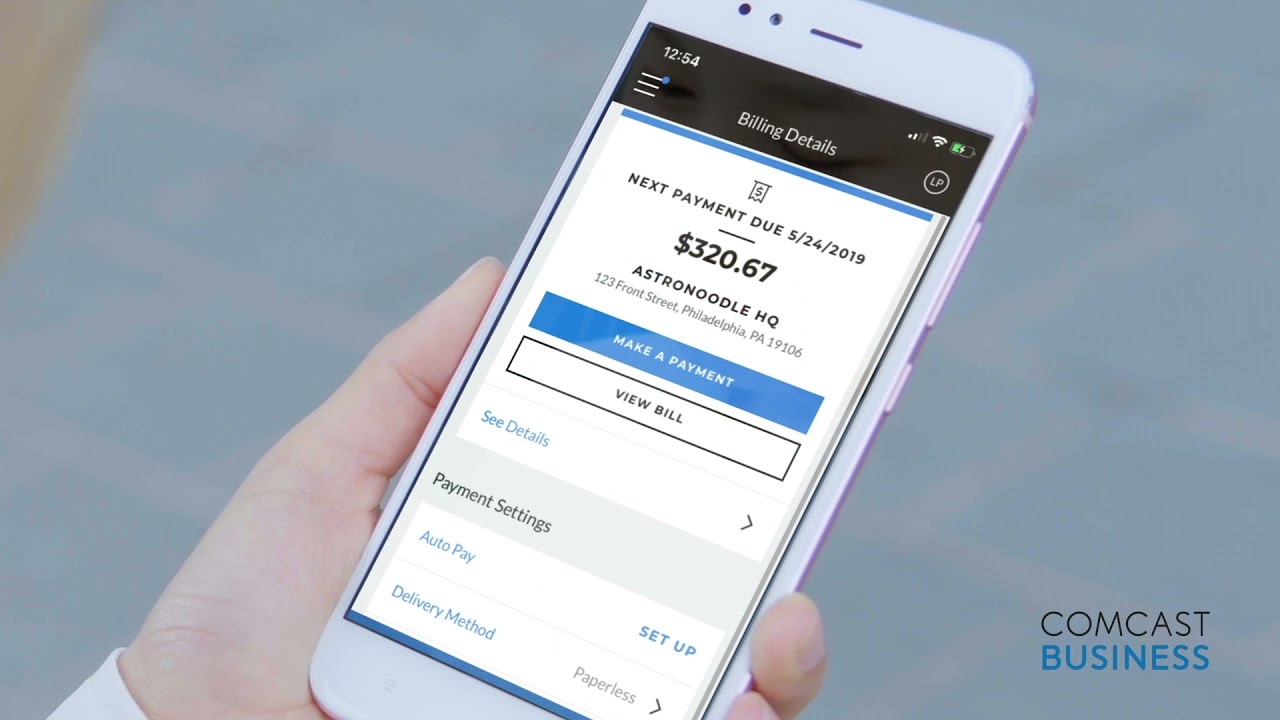
Phase 1: The Quick Fix Checklist
Before diving into complex technical settings, perform these “low-hanging fruit” checks. Nine out of ten login failures are resolved here.
1. Check Service Status
It sounds simple, but you cannot log into a portal that is down. Use your mobile data (not your office Wi-Fi) to visit the Comcast Business Service Status Center. If there is a localized outage or a national maintenance window, the login server may be temporarily unreachable.
2. The Incognito/Private Test
Modern browsers like Microsoft Edge, Chrome, and Safari store “cookies” to remember you. In 2026, a common error is “HTTP Error 400: Header Too Long.” This happens when your browser’s Comcast-related cookies have grown so large that the server rejects them.
- Open a New Incognito Window (Ctrl+Shift+N).
- Attempt to log in.
- If it works: You need to clear your browser cache and cookies specifically for comcast.com.
3. Disable VPNs and Proxies
Comcast’s security filters are aggressive in 2026. If you are using a VPN to mask your location, the system may flag your login as a “High-Risk Attempt” and block the handshake. Disable your VPN and try again to see if the gateway recognizes your office’s static IP.
Phase 2: Resolving “User Authentication Failed” Errors
If you receive a specific error stating authentication failed, the issue usually lies within the synchronization of your credentials or a temporary security lock.
Troubleshooting MFA and 2FA Loops
Multi-Factor Authentication is now mandatory for most administrative roles. If you aren’t receiving your code or the code is being rejected:
- Sync Your Device Time: This is the #1 cause of 2FA rejection. Ensure your smartphone’s time is set to “Set Automatically.” If your phone’s internal clock is even 30 seconds off from Comcast’s servers, the generated code will be invalid.
- Check the “Remember this Browser” Setting: If you previously selected this but are now getting a login loop, the saved token has likely corrupted. You must clear the site-specific data to trigger a fresh MFA prompt.
Resetting Your Password Correctly
If you’ve forgotten your password, do not guess more than three times. After five failed attempts, Comcast Business accounts are often subject to a 24-hour security lock.
- Go to the Comcast Business Password Reset page.
- Enter your verified email or your Account Number (found on your physical bill).
- Choose the Text Message recovery option; in 2026, email recovery is often delayed by corporate spam filters.
Phase 3: Advanced Browser & App Troubleshooting
If you can log in on your phone but not your desktop (or vice versa), the problem is environment-specific.
Fixing the Comcast Business App (iOS/Android)
The 2026 version of the Comcast Business App relies heavily on local encryption keys. If the app crashes during login:
- Force Close and Clear App Cache: On Android, go to Settings > Apps > Comcast Business > Storage > Clear Cache. On iOS, you will need to uninstall and reinstall the app to clear the “Keychain” data.
- Update the App: Comcast frequently pushes “Security Patches.” An outdated app version will be blocked from the login server for your protection.
Addressing Browser Extensions
Certain ad-blockers and privacy extensions (like uBlock Origin or Privacy Badger) can accidentally block the script that renders the login button or the MFA pop-up. Try disabling all extensions temporarily to isolate the cause.
Phase 4: Recovering Your Username (Xfinity ID)
Sometimes the issue isn’t the password, but the ID itself. Many businesses have multiple users, and it’s easy to confuse a personal Xfinity ID with a Business ID.
- Navigate to the Find My Xfinity ID tool.
- Enter the Customer ID and the Billing Zip Code.
- The system will display the associated username. In 2026, your username is almost always the full email address you used during registration.
When to Contact Support
If you have cleared your cache, disabled your VPN, synced your clock, and reset your password, yet you still see “Account Disabled” or “Contact your Administrator,” there may be a backend conflict.
- Primary Manager Lockout: If the Primary Manager cannot log in, they must call (800) 391-3000. In 2026, Comcast uses “Voice Biometrics” or a “Security PIN” (delivered via mail or verified mobile) to verify identity over the phone.
- The Security PIN: Remember, for voice services and certain portal changes, you need a CPNI Security PIN. If you’ve lost this, you can request a reset through the portal, but it may require the Primary Manager to approve the request via the mobile app.
Summary of 2026 Login Best Practices
To avoid future issues, follow these simple maintenance tips:
- Set up at least two MFA methods: Use both an Authenticator App (like Google Authenticator) and a mobile number.
- Regularly Update Your Browser: Security certificates evolve; an old browser version won’t support 2026 encryption.
- Audit User Permissions: If a former employee’s credentials are still active, it can trigger security flags for the entire organization.
By following this guide, you can minimize the frustration of login errors and keep your business moving at the speed of light.
More Stories
Unlock the Core Strategy: The Secret Weapon of Top Performers
The Hidden Secret Behind Scaling Your Business Fast – Revealed
The Rise of the Side Hustle Empire: How Solo Entrepreneurs Are Redefining Business in the Gig Economy